

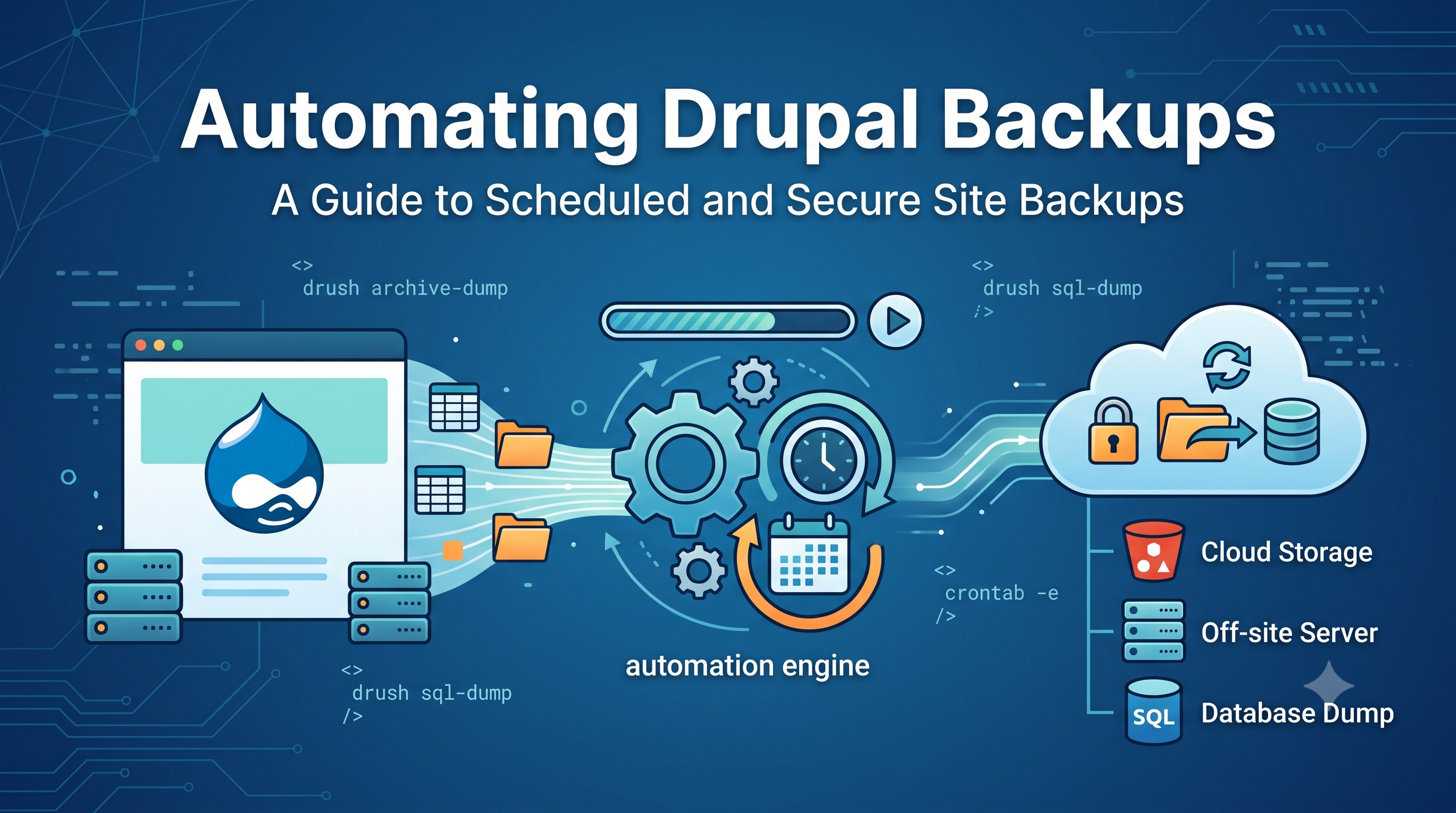
Automating Drupal backups is a crucial step in ensuring the security and integrity of your website. As a Drupal site owner or administrator, you understand the importance of having a reliable backup system in place. In this article, we will explore the importance of automating Drupal backups, discuss the different methods and tools available, and provide a step-by-step guide on how to set up an automated backup system for your Drupal site.
Introduction to Drupal Backups
Drupal is a powerful and flexible content management system (CMS) that allows you to create complex and dynamic websites. However, with great power comes great responsibility. As your site grows and evolves, the risk of data loss or corruption also increases. This can be due to various factors such as hacking, hardware failure, or human error. Having a reliable backup system in place can help mitigate these risks and ensure that your site is always available and functional.
Why Automate Drupal Backups?
Automating Drupal backups is essential for several reasons. Firstly, it saves time and effort. Manual backups can be time-consuming and prone to errors, especially if you have a large site with multiple databases and files. Automated backups, on the other hand, can be scheduled to run at regular intervals, ensuring that your site is always backed up without requiring manual intervention. Secondly, automated backups provide an added layer of security. By having a regular backup schedule, you can ensure that your site is protected against data loss or corruption, even in the event of a disaster. Finally, automated backups can help improve site performance. By reducing the need for manual backups, you can free up system resources and improve site speed and responsiveness.
Methods and Tools for Automating Drupal Backups
There are several methods and tools available for automating Drupal backups. These include:
Drupal Modules
Drupal has a range of modules that can help automate backups, including:
- Backup and Migrate: This module allows you to backup and restore your site's database and files.
- Backup DB: This module provides a simple way to backup your site's database.
- Site Backup: This module allows you to backup your site's files and database.
Third-Party Tools
There are also several third-party tools available that can help automate Drupal backups, including:
- Acquia Backup: This tool provides a comprehensive backup solution for Drupal sites.
- BackupBuddy: This tool allows you to backup your site's files and database.
- Duplicator: This tool provides a simple way to backup and duplicate your site.
Command Line Tools
You can also use command line tools to automate Drupal backups. These include:
- Drush: This is a command line shell for Drupal that allows you to backup and restore your site.
- MySQLdump: This tool allows you to backup your site's database.
Setting Up Automated Backups
Setting up automated backups for your Drupal site is relatively straightforward. Here are the steps to follow:
Step 1: Choose a Backup Method
The first step is to choose a backup method that suits your needs. This could be a Drupal module, a third-party tool, or a command line tool.
Step 2: Configure the Backup Settings
Once you have chosen a backup method, you need to configure the backup settings. This includes setting the backup frequency, choosing what to backup, and specifying the backup destination.
Step 3: Schedule the Backup
The next step is to schedule the backup. This can be done using a cron job or a scheduling tool.
Step 4: Test the Backup
Finally, you need to test the backup to ensure that it is working correctly. This includes verifying that the backup files are being created and that they can be restored successfully.
Best Practices for Automating Drupal Backups
When automating Drupal backups, there are several best practices to keep in mind. These include:
Backup Frequency
The frequency of backups depends on how often your site is updated. If your site is updated frequently, you may need to backup more often.
Backup Destination
It's essential to store your backups in a secure location, such as an external hard drive or a cloud storage service.
Backup Verification
It's crucial to verify that your backups are complete and can be restored successfully.
Backup Retention
You should keep multiple backups to ensure that you have a backup from a previous date in case something goes wrong.
Conclusion
Automating Drupal backups is a critical step in ensuring the security and integrity of your website. By choosing the right backup method and configuring the backup settings, you can ensure that your site is always backed up and protected against data loss or corruption. Remember to follow best practices, such as verifying backups and storing them in a secure location. With automated backups in place, you can have peace of mind knowing that your site is safe and secure. Whether you are a seasoned Drupal developer or a site owner, automating backups is an essential task that should not be overlooked. By taking the time to set up automated backups, you can protect your site and ensure that it remains available and functional for years to come.