

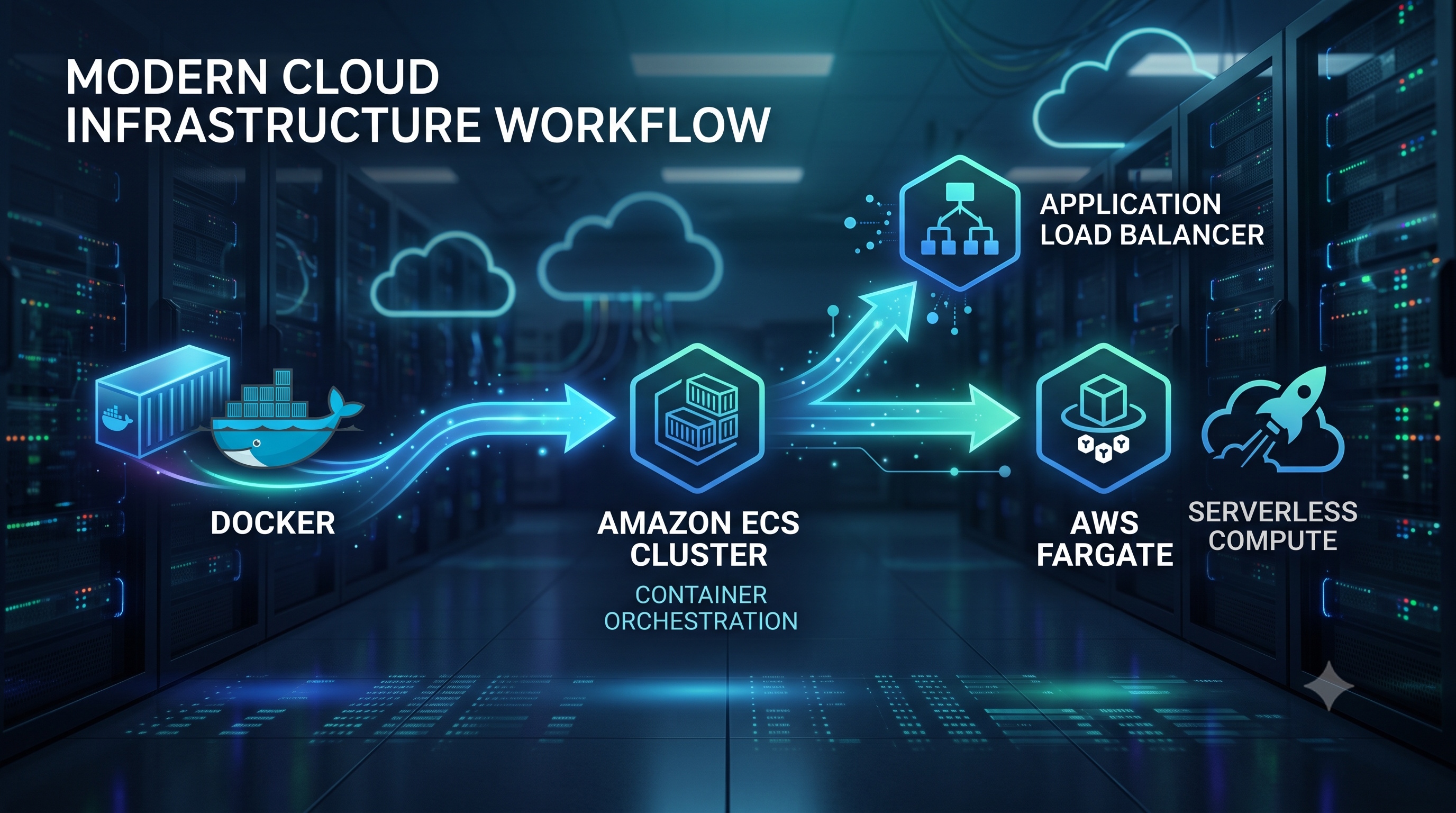
Deploying a Docker container on Amazon ECS involves a disciplined sequence: building a lightweight image, securing a registry, configuring networking and IAM, defining a precise task definition, and launching a resilient service. By following the best practices outlined above, teams can achieve consistent, scalable, and observable container workloads on AWS. Continuous monitoring, automated scaling, and proactive troubleshooting further ensure that the deployment remains robust as traffic patterns evolve.
Introduction
Amazon Elastic Container Service (ECS) provides a fully managed environment for running Docker containers at scale. By integrating tightly with other AWS services, ECS simplifies networking, security, and orchestration while giving you control over compute resources. This article walks through the end‑to‑end process of preparing a Docker image, configuring the required AWS resources, defining a task, and launching a service on ECS. The guidance is suitable for both newcomers and experienced engineers who need a reliable reference for production deployments.
Understanding Amazon ECS
ECS is a container orchestration platform that supports two launch types:
- EC2 launch type – containers run on Amazon EC2 instances that you provision and manage.
- Fargate launch type – containers run on serverless compute managed by AWS; you do not manage underlying instances.
Both launch types share a common set of concepts that form the foundation of any deployment.
Key Concepts
- Cluster – a logical grouping of compute resources (EC2 instances or Fargate capacity).
- Task definition – a JSON or YAML template that describes one or more containers, their images, CPU and memory requirements, ports, environment variables, and storage.
- Task – an instantiation of a task definition; a single running unit of work.
- Service – maintains a desired number of task copies, handles load balancing, and performs health‑check based replacements.
- Container registry – a place to store Docker images; Amazon Elastic Container Registry (ECR) is the native option.
Understanding these elements helps you design a deployment that aligns with security, scalability, and cost goals.
Preparing the Docker Image
A reliable container starts with a well‑crafted Docker image. Follow these steps before pushing the image to a registry.
1. Write a concise Dockerfile that installs only the runtime dependencies required by the application.
2. Use multi‑stage builds to keep the final image small and free of build‑time tools.
3. Run the application as a non‑root user inside the container.
4. Tag the image with a semantic version to simplify rollbacks.
5. Build the image locally and test it with `docker run` to verify functionality.
6. Authenticate to Amazon ECR and push the image using `docker push`.
Dockerfile Best Practices
- Start from an official, minimal base image such as `alpine` or `debian-slim`.
- Declare `ARG` variables for build‑time parameters and `ENV` for runtime configuration.
- Use `COPY` instead of `ADD` unless you need automatic extraction of archives.
- Combine related `RUN` commands with `&&` to reduce the number of layers.
- Expose only the ports required by the application.
Configuring AWS Resources
Before launching a task, you must set up the supporting AWS infrastructure.
- Create an ECR repository – this stores the Docker image and provides a URI for the task definition.
- Set up an IAM role – the task execution role grants ECS permission to pull images from ECR and write logs to CloudWatch.
- Configure a VPC – choose subnets (public for internet‑facing services, private for internal workloads) and assign appropriate route tables.
- Define security groups – allow inbound traffic on the container ports and restrict outbound traffic as needed.
IAM Permissions
- `ecr:GetAuthorizationToken` – enables the task to authenticate with ECR.
- `ecr:BatchGetImage` and `ecr:GetDownloadUrlForLayer` – allow image retrieval.
- `logs:CreateLogStream` and `logs:PutLogEvents` – let the container write logs to CloudWatch.
Attach these permissions to the task execution role and reference the role ARN in the task definition.
Defining the Task Definition
The task definition is the contract between ECS and your container. You can create it via the AWS Management Console, the CLI, or infrastructure‑as‑code tools such as CloudFormation or Terraform. Below is a minimal JSON example for a Fargate task that runs a web service.
```json
{
"family": "my-web-service",
"networkMode": "awsvpc",
"requiresCompatibilities": ["FARGATE"],
"cpu": "256",
"memory": "512",
"executionRoleArn": "arn:aws:iam::123456789012:role/ecsTaskExecutionRole",
"containerDefinitions": [
{
"name": "web",
"image": "123456789012.dkr.ecr.us-east-1.amazonaws.com/my-web-app:1.2.3",
"portMappings": [
{
"containerPort": 80,
"protocol": "tcp"
}
],
"essential": true,
"logConfiguration": {
"logDriver": "awslogs",
"options": {
"awslogs-group": "/ecs/my-web-service",
"awslogs-region": "us-east-1",
"awslogs-stream-prefix": "ecs"
}
}
}
]
}
```
Key fields to verify:
- `family` – logical name for the task family.
- `requiresCompatibilities` – set to `FARGATE` for serverless compute.
- `cpu` and `memory` – allocate resources per task.
- `executionRoleArn` – reference the IAM role created earlier.
- `logConfiguration` – directs container logs to CloudWatch for observability.
Deploying the Service
With the task definition registered, you can create a service that maintains the desired number of running tasks.
CLI Deployment Steps
```bash
Register the task definition
aws ecs register-task-definition --cli-input-json file://task-def.json
Create the ECS service
aws ecs create-service \
--cluster my-cluster \
--service-name my-web-service \
--task-definition my-web-service:1 \
--desired-count 3 \
--launch-type FARGATE \
--network-configuration "awsvpcConfiguration={subnets=[subnet-abc123,subnet-def456],securityGroups=[sg-0123456789abcdef],assignPublicIp=ENABLED}"
```
- Adjust `desired-count` to match the expected load.
- For load‑balanced services, attach an Application Load Balancer (ALB) target group in the `--load-balancers` argument.
- Use CloudFormation or Terraform for repeatable deployments across environments.
Monitoring and Scaling
Continuous visibility and automated scaling are essential for production reliability.
- CloudWatch Metrics – monitor CPUUtilization, MemoryUtilization, and custom application metrics.
- Service Auto Scaling – define scaling policies that increase or decrease the task count based on metric thresholds.
- Health Checks – configure the ALB to perform HTTP health checks; ECS will replace unhealthy tasks automatically.
Scaling Policies
- Scale out when CPUUtilization exceeds 70 % for two consecutive periods of 60 seconds.
- Scale in when CPUUtilization falls below 30 % for three consecutive periods of 120 seconds.
- Set minimum and maximum task counts to prevent over‑provisioning.
Common Pitfalls and Troubleshooting
- Image pull failures – verify that the task execution role has correct ECR permissions and that the image URI matches the repository.
- Port conflicts – ensure the container port mapping aligns with the ALB listener configuration and that security groups allow inbound traffic.
- Insufficient IAM permissions – missing `logs:*` actions will prevent log delivery; check CloudWatch log group existence.
- Subnet misconfiguration – Fargate tasks require subnets with adequate IP address capacity; use the VPC IP address manager to track usage.
- Task definition version drift – always reference the latest task definition revision when updating a service; use the `:latest` tag cautiously.
Addressing these issues early reduces downtime and simplifies ongoing maintenance.
Conclusion
Deploying a Docker container on Amazon ECS involves a disciplined sequence: building a lightweight image, securing a registry, configuring networking and IAM, defining a precise task definition, and launching a resilient service. By following the best practices outlined above, teams can achieve consistent, scalable, and observable container workloads on AWS. Continuous monitoring, automated scaling, and proactive troubleshooting further ensure that the deployment remains robust as traffic patterns evolve.