

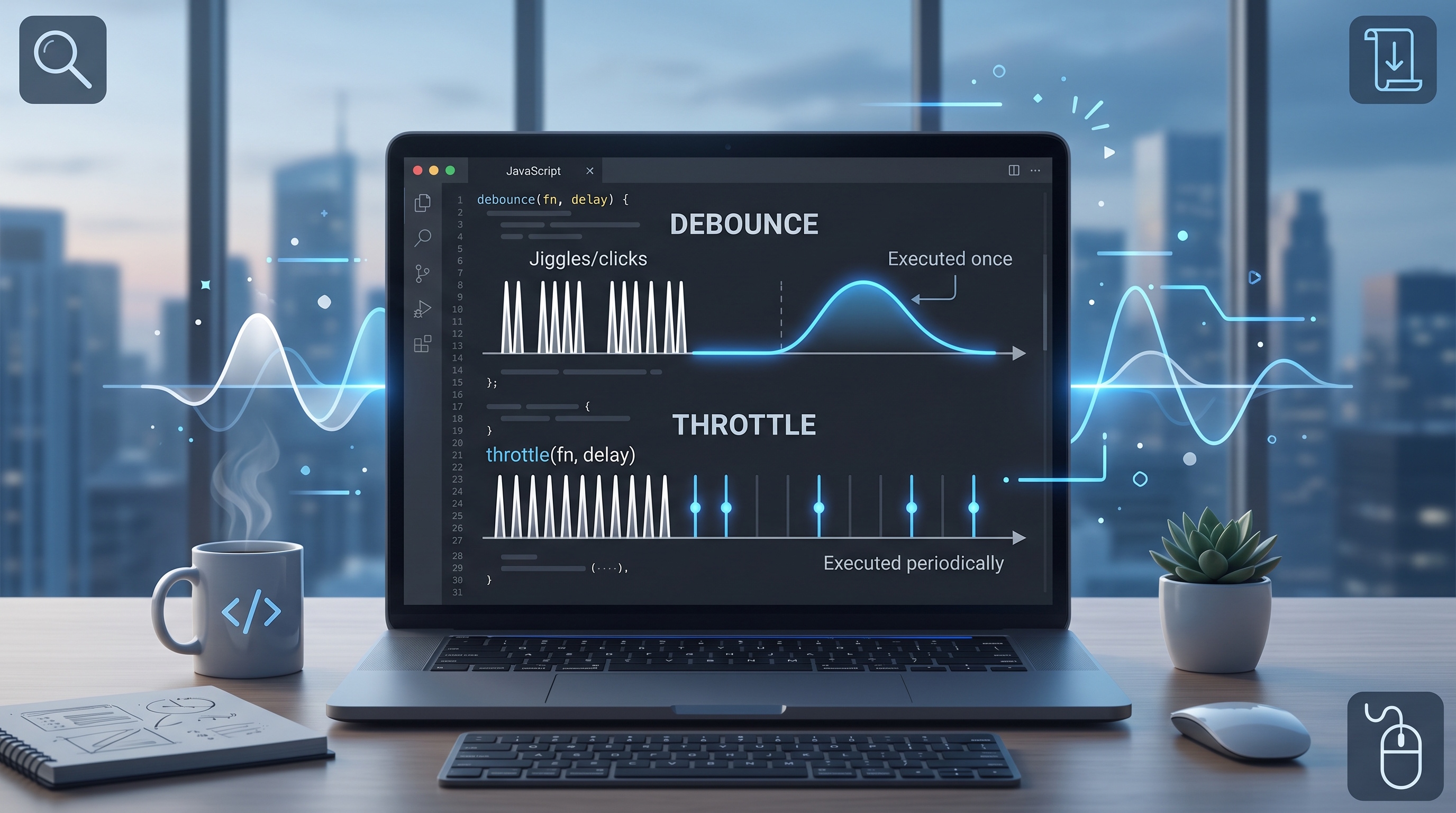
Debounce and throttle are your best tools for managing event-heavy code. Debounce is for "finished" actions, and throttle is for "continuous" updates. Use them to keep your interfaces smooth without hogging the CPU.
Introduction
Modern web apps deal with events that fire constantly, like scrolling, resizing, or typing. If you run code on every single event, your site will slow down and waste CPU. Debounce and throttle are two ways to control this, and this guide explains how they work, how to write them, and when to use them.
Understanding the Problem
When an event fires rapidly, it is easy to write a handler that runs every time. Think about:
- Typing in a search box (a keyup event for every character).
- Resizing a window (a resize event for every pixel).
- Infinite scroll (a scroll event for every movement).
Running heavy tasks like AJAX calls or DOM updates on these events will make your UI sluggish. You need to limit how often these functions execute. That is where these techniques come in.
What Is Debounce?
Debounce forces a function to wait until a specific amount of time has passed without the event firing again. It waits for the action to finish before running the code.
Typical Use Cases
- Search bars (wait for the user to stop typing).
- Window resizing (recalculate layout after the user stops dragging).
- Form validation (run after the user pauses input).
Code Example
```javascript
function debounce(func, wait) {
let timeoutId;
return function (...args) {
const context = this;
clearTimeout(timeoutId);
timeoutId = setTimeout(() => func.apply(context, args), wait);
};
}
// Usage
const handleSearch = debounce((query) => {
console.log('Fetching results for', query);
}, 300);
document.getElementById('search').addEventListener('input', (e) => {
handleSearch(e.target.value);
});
```
In this example, handleSearch executes only after the user stops typing for 300 milliseconds. Each new keystroke resets the timer, preventing intermediate calls.
What Is Throttle?
Throttle ensures a function runs at most once every few milliseconds, no matter how many times the event triggers. Unlike debounce, it does not wait for silence; it just paces the execution.
Typical Use Cases
- Tracking scroll position.
- Sending analytics pings.
- Animations during mouse moves.
Code Example
```javascript
function throttle(func, limit) {
let lastCall = 0;
return function (...args) {
const now = Date.now();
if (now - lastCall >= limit) {
lastCall = now;
func.apply(this, args);
}
};
}
// Usage
const handleScroll = throttle(() => {
console.log('Scroll position:', window.scrollY);
}, 200);
window.addEventListener('scroll', handleScroll);
```
Here, handleScroll logs the scroll position at most once every 200 milliseconds, even if the scroll event fires many times per frame.
Choosing the Right One
- Use debounce if you only care about the final state after the user finishes an action.
- Use throttle if you need to keep updating the UI steadily while an action is happening.
Performance Tips
- Do not set your delay too short or too long.
- Keep your 'this' context correct when passing functions around.
- Always clear your timers if the component unmounts to avoid memory leaks.
- If you are doing DOM work, throttle combined with requestAnimationFrame is usually smoother.
Conclusion
Debounce and throttle are your best tools for managing event-heavy code. Debounce is for "finished" actions, and throttle is for "continuous" updates. Use them to keep your interfaces smooth without hogging the CPU.